Flowzino
AI-powered workflow automation

Build AI workflows by dragging, not coding

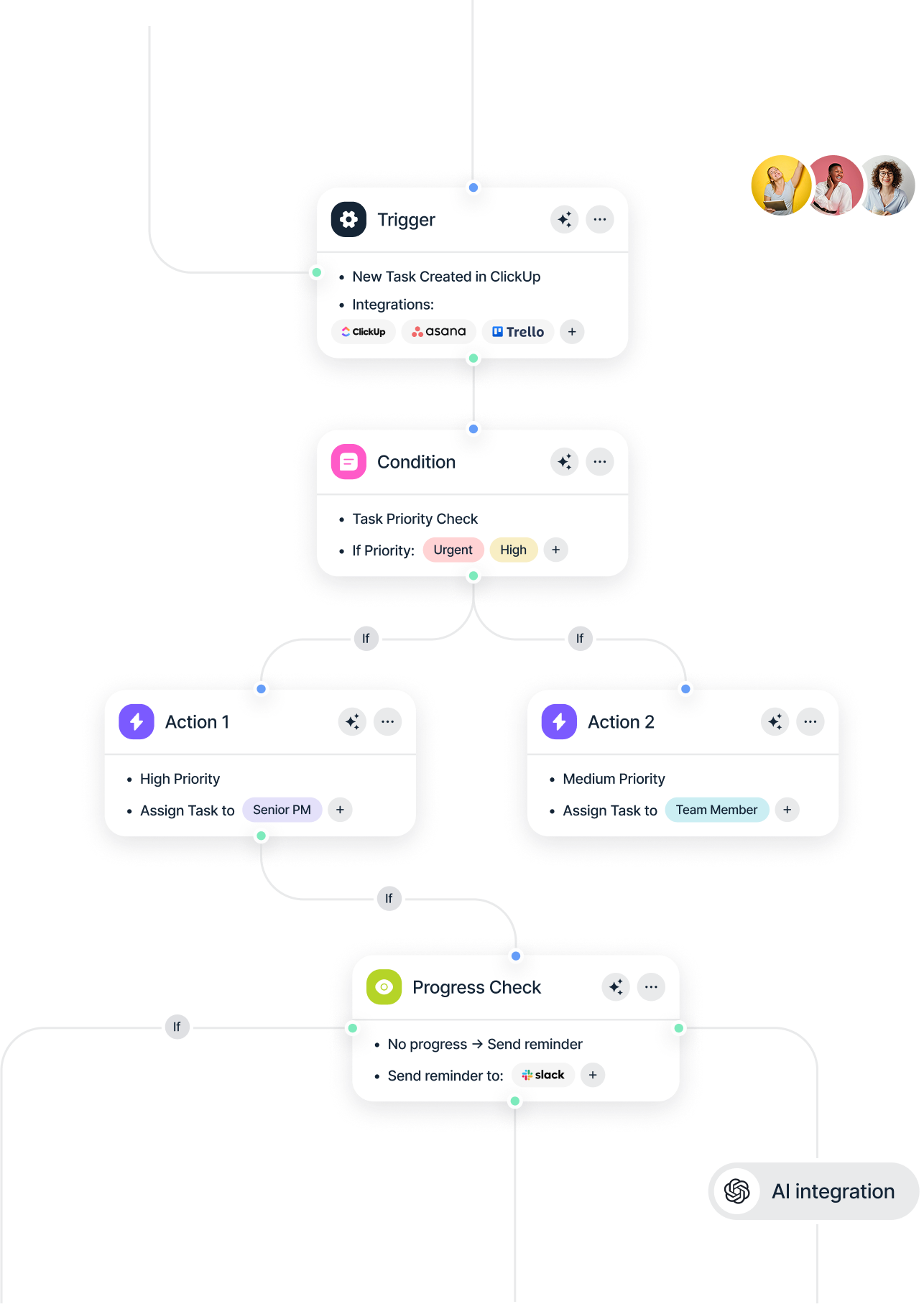
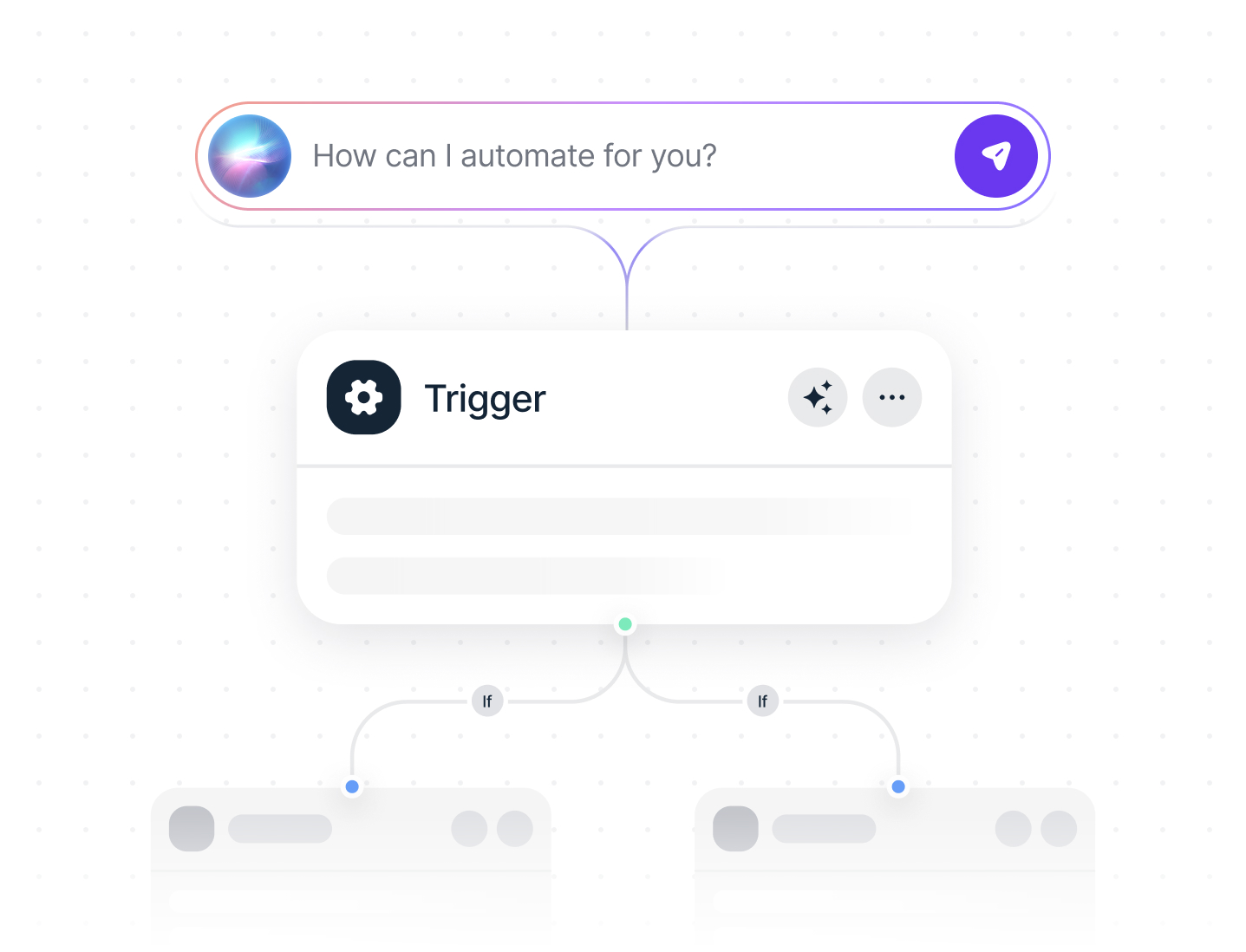
Flowzino compiles a visual canvas of triggers, AI agents, and actions into a versioned workflow definition — drag it together, watch it run, and see exactly what happened on every execution.

Trigger
New email received
Gmail · Support inbox
AI Agent
Summarize & classify
AI Agent · GPT-class model
Condition
Is it urgent?
Condition · priority = high
Action
Notify on Slack
Action · #support channel
Action
Create ticket
Action · Jira · P1 queue
AI Agent
Draft a reply
AI Agent · matches tone & language
Action
Send reply email
Action · Gmail · auto-send
Action
Log outcome
Action · Google Sheets
Drag nodes to move them, click one to configure it

This is a live preview of the canvas — drag nodes, add a step from the palette, or hit Run.

4
core node types
Any API
via the HTTP node
< 5 min
to first workflow
Live
execution view
Under the hood

A real workflow definition, not a black box

Every canvas compiles to a versioned JSON workflow definition — nodes, edges, and a retry policy. Inspect it, diff it across versions, or export it to move a workflow between environments.

  • Idempotent retries — a failed run never double-sends an action.
  • Every save is a new version — diffable, rollback-able, exportable.
support-inbox-triage.flow.json
1{
2 "workflow": "support-inbox-triage",
3 "version": 7,
4 "nodes": [
5 {
6 "id": "n1",
7 "type": "trigger.email",
8 "config": { "mailbox": "support@", "folder": "INBOX" }
9 },
10 {
11 "id": "n2",
12 "type": "ai_agent",
13 "model": "flowzino-reasoning-1",
14 "instructions": "Summarize the thread and classify
15 urgency as low | medium | high.",
16 "input": "${n1.body}"
17 },
18 {
19 "id": "n3",
20 "type": "condition",
21 "expr": "${n2.output.urgency} == 'high'"
22 },
23 {
24 "id": "n4",
25 "type": "action.slack",
26 "channel": "#support-urgent",
27 "message": "${n2.output.summary}"
28 }
29 ],
30 "edges": [
31 ["n1", "n2"], ["n2", "n3"], ["n3", "n4"]
32 ],
33 "retry_policy": { "mode": "idempotent", "max_attempts": 3 }
34}
How it works

From idea to running workflow in three steps

STEP 1

Drag your first nodes onto the canvas

Pick a trigger — a new email, a form submission, a schedule — and drop it on the canvas. Add an AI Agent or action node next to it.

STEP 2

Connect them and tell the AI what to do

Draw a line from one node to the next. For AI Agent nodes, just describe the task in plain language — no prompt engineering required.

STEP 3

Turn it on and watch it run

Flip the workflow live and watch data move through each node in real time, so you know exactly what happened on every run.

The building blocks

Four node types, endless workflows

Every workflow in Flowzino is composed from the same four building blocks — mix and match them to fit whatever process you're automating.

Triggers

Start a workflow from a new email, a form submission, a schedule, or a webhook from any external system.

AI Agents

Summarize, classify, draft, or decide — give an agent plain-language instructions and let it act on the data flowing through.

Conditions

Branch a workflow based on a value, an AI classification, or any rule you define — no nested if/else to maintain.

Actions

Send a Slack message, update a spreadsheet, create a record, or call your own API to finish the job.

Everything you need to automate, visually

Flowzino isn't a form for configuring rules — it's a canvas for designing how work actually moves.

Visual drag-and-drop canvas

Build multi-step automations by dragging triggers, AI agents, conditions, and actions onto a canvas and connecting them — no code, no YAML. The workflow you see is the workflow that runs.

TriggerAI AgentConditionAction

AI agent nodes

Summarize, classify, draft, or decide — configured with plain-language instructions.

Built-in + any API

Email, CRMs, spreadsheets, Slack out of the box — and a universal HTTP node for everything else.

Real-time execution view

Watch data flow through your workflow live, node by node.

Built for teams

Share workflows, comment on nodes, and control who can edit or view.

Version history & rollback

Every change to a workflow is saved automatically. Roll back to any previous version in one click.

See all features →

Frequently asked questions

No. Every workflow is built by dragging nodes onto a canvas and connecting them. AI Agent nodes are configured with plain-language instructions instead of code or prompt templates.

Ready to build your first workflow?

Start free — no credit card required. Drag your first three nodes together in under five minutes.